
 0345 363 1130
 info@xchangetraining.co.uk


Canva Introduction Masterclass 2 Day - London
Level:
Introduction to Intermediate
Duration:
2
Days - 10am to 5pm
Price:
£450 + vat
Discover Canva in depth with our immersive two-day Introduction Masterclass, designed to take you from complete beginner to confident creator. You'll explore Canva’s powerful yet intuitive tools while building the practical skills you need to design polished graphics, social posts, videos and branded materials with ease.
As you progress, you’ll move beyond the essentials of the workspace to develop a fuller understanding of layout, colour, typography and visual consistency. Through hands-on projects, you’ll learn how to create multi-page documents, presentations, short videos and campaign-ready assets, and how to set up brand kits, collaborate effectively and optimise your exports. By the end you’ll have the confidence to produce professional, engaging content for any purpose.
Discover Canva in depth with our immersive two-day Introduction Masterclass, designed to take you from complete beginner to confident creator. You'll explore Canva’s powerful yet intuitive tools while building the practical skills you need to design polished graphics, social posts, videos and branded materials with ease.
As you progress, you’ll move beyond the essentials of the workspace to develop a fuller understanding of layout, colour, typography and visual consistency. Through hands-on projects, you’ll learn how to create multi-page documents, presentations, short videos and campaign-ready assets, and how to set up brand kits, collaborate effectively and optimise your exports. By the end you’ll have the confidence to produce professional, engaging content for any purpose.
-
Canva Masterclass 2 Day
Course Details
This 2-day Canva Introduction Masterclass offers a deeper, more comprehensive exploration of Canva’s powerful creative tools. Over two immersive days, you'll develop the confidence to design polished graphics, videos, documents, and branded materials using Canva’s intuitive drag-and-drop interface. With extended time for guided practice, this course ensures you can apply your skills across a wide range of projects—from social media content to presentations and marketing assets.
Ideal for beginners, marketers, business owners, educators, and anyone looking to elevate their visual communication skills, this masterclass expands on core design principles while introducing advanced features such as brand kits, multi-page layouts, and video editing. You’ll not only learn how to create engaging content but also how to streamline your workflow and maintain consistency across your designs.
Upon successful completion of this course, you will be able to:
- Navigate the Canva interface with confidence and efficiency
- Design a wide variety of assets including social posts, flyers, videos, and multi-page documents
- Apply core design principles to improve layout, typography, and visual hierarchy
- Build and use brand kits for consistent, professional branding
- Edit images, apply effects, and enhance content with advanced tools
- Collaborate on shared projects and manage workflow effectively
- Export high-quality files for print, social media, and digital platforms
By the end of this masterclass, you’ll have the practical skills and creative confidence to produce professional, engaging designs for any purpose—with the expertise to continue developing your visual content independently.
Course Target Audience and delegate prerequisites:
This course is ideal for marketers, social media managers, small business owners, content creators, educators and anyone looking to create professional-quality designs quickly and efficiently without advanced design skills.
You will need basic PC or Mac skills, including a good understanding of your operating system. You should be able to launch applications, manage files and folders, and save or locate documents confidently.
-
Full Course Outline
The following is a general outline. The range of topics covered during your training is dependent upon student level, time available and preferences of your course booking.
Introducing Canva- Why and when to use Canva
- How Canva compares to Photoshop, Illustrator and InDesign
- A brief history of Canva’s development
- Overview of Free, Pro and Teams plans
- When you should upgrade to Canva Pro
- Using Canva on desktop vs. browser
- Understanding the Home screen
- Creating folders and sections
- Managing Projects
- Working with Templates
- Selecting Documents, Whiteboards and Presentations
- Choosing Social Media and Marketing formats
- Exploring Education and Video templates
- Switching between Scroll, Thumbnail and Grid views
- Zooming and navigation tools
- Adding elements, text and visual assets
- Adding shapes, graphics and frames
- Using stock images effectively
- Understanding vector vs. bitmapped images
- Choosing the right font
- Uploading custom fonts
- Applying styles and text presets
- Understanding text hierarchy and readability
- Moving objects forward and backward
- Working with the Layers panel
- Rearranging layers for clean layout
- Using alignment and positioning controls
- Copying style attributes between objects
- Pasting type and effect attributes
- Applying styles to shapes and graphics
- Locking pages and elements
- Duplicating elements and layouts
- Using the Alt key for quick duplication
- Using the Duplicate function for speed
- Animating pages and individual elements
- Applying Magic Animate
- Building simple animated visuals
- Placing and trimming video clips
- Adjusting timing in the video editor
- Duplicating and reusing video content
- Working with background video
- Adding design notes and comments
- Sharing links and managing access
- Using Public View links
- Presenting live or through Zoom/Teams
- Adding tables and spreadsheets
- Editing rows, columns and formulas
- Formatting sheets for clarity
- Adding and customising charts
Downloading and Exporting- Understanding export options and file types
- Working with PDF settings
- Vector vs. bitmapped export considerations
- Setting up a Brand Kit
- Choosing colours and defining type styles
- Uploading fonts and brand graphics
- Creating reusable templates
- Writing content with Magic Write
- Magic Write vs. Grammarly
- Setting up a consistent Brand Voice
- Understanding AI limitations and cautions
- Setting up and navigating a Whiteboard
- When to use Whiteboards
- Creating mindmaps and collaborative layouts
- Using drawing tools for sketching ideas
- Cropping, flipping and adjusting photos
- Using the Background Remover
- Adjusting light, colour and white balance
- Applying textures, clarity and filters
- Sharing content via Canva Websites
- When web delivery is appropriate
- Choosing a URL and understanding limitations
- Generating designs and layouts
- Creating AI-generated images
- Drafting documents with AI tools
- Generating video and code-based elements
- Finding and installing Canva Apps
- Using file and graphic apps
- Adding voice and sound assets
- Extending Canva using AI-powered apps
- Exploring advanced animation features
- Animating objects along a motion path
- Smoothing and adjusting animation movement
- Adding advanced effects and transitions
- Understanding print formats and requirements
- Resizing designs for print outputs
- Choosing print suppliers
- Preparing files for local printing
- Understanding scroll-based layouts
- Designing content for web scrolling
- Controlling scroll motion and behaviour
- Exploring additional scroll-based features
- Using essential keyboard shortcuts
- Working efficiently with image frames
- Adding sound, audio and voice elements
- Using rulers, guides and Version History
-
Location Details
This course is provided at the XChange Training London training centre based at:
5 St John’s Lane
Clerkenwell
London
EC1M 4BHSt John’s Lane is located in the heart of Clerkenwell close to the junction of Farringdon and Clerkenwell Road. Farringdon tube & train station is just a few minutes away and the training centre can also be accessed from Chancery Lane and Barbican tubes in about 10 minutes. There is also easy direct access by bus from Waterloo (243) and West End (55) with nearby stops.
Daily course times run between 10am and 5pm with an hour break for lunch and both mid morning and mid-afternoon refreshment breaks. We recommend arrival at 9.45am for registration on the first day of the course.
View Full details of our London Training Venue and Course options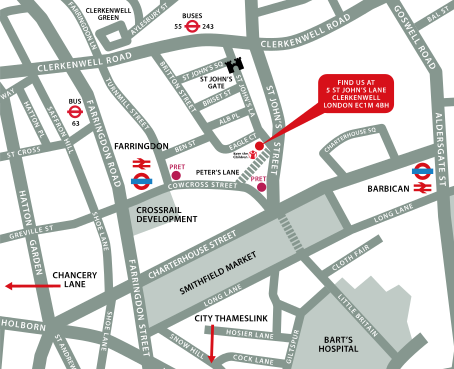
↑ Click the map to view a larger version ↑
View our London Centre Location on Google Maps
-
Canva Masterclass 2 Day - Upcoming London Course Dates
12 Oct - 13 Oct £450 + vat 09 Dec - 10 Dec £450 + vat -
Client Reviews
"Brilliant two days. I was sceptical about how much we would learn in two days but now feel like I am definitely ready and eager to use InDesign on my own. The facilities were great and the class size perfect and it is brilliant that we receive a book to help us through post-course use of the software. Nice relaxed atmosphere. "
Emma Bedford, Wem Town Hall Trust, InDesign - Two Day Introduction
"Great course, great tutor - really enjoyed it! Cheers!"
Simon Thompson, Bedford Borough Council, Photoshop - 2 Day Intermediate
"Excellent course content and structured in such a way that it is easy to understand for the beginner. Thank you for the excellent course."
Tami Penswick, Yahoo, HTML & CSS - 2 Day Introduction
"I now feel very confident with Photoshop, the last two days have helped build my knowledge of the program and I look forward to trying out the new things I have learnt."
Alex Goodman, iris Culture, Photoshop - 1 Day Introduction
"Our instructor put us at ease immediately and explained all course content very clearly and efficiently. He quickly realised what level we were at and adapted the content to suit. "
Lynn McBean, Material MC, Photoshop - 1 Day Bespoke
"Good pace and broad spectrum of basics covered, along with some harder content. Instructor was friendly, direct and highly knowledgeable. Not a pressured environment, very useful."
Jennifer Brough, Chartered Insurance Institute, Photoshop - 1 Day Introduction
"A very good syllabus that covered the basics needed for After Effects with links to other Creative Cloud packages."
Lori Smith, IKM Consulting, After Effects - Two Day Introdcution
"Excellent course, the instructor provided detailed exercises to complete tasks, making them memorable. I would recommend to the our wider organisation."
Trish Palmer, IKM Visual Solutions, Adobe After Effects - Two Day Introduction
"Good vibe, small classes overall very good."
Adam Donovan, Dental Design, WordPress - 1 Day Advanced
"Small group allowed for conversation around relevant topics. Thanks"
Leon Malletton, University of Sheffield, Premiere Pro - 2 Day Introduction
 £450 + vat
Next Dates:
 12 Oct - 13 Oct £450 + vat
09 Dec - 10 Dec £450 + vat
Over 15 years of providing certified Canva training courses UK wide

5/5 Stars
really enjoyed course and i've already emailed my boss to get further training via this company
04/09/2026
5/5 Stars
Enjoyed the course, it was very helpful to learn more about Canva, including features I haven't used before and useful shortcuts. It was also good to learn about it from a design perspective and Simon's knowledge and design background also helped to make it interesting.
04/09/2026
5/5 Stars
Broad coverage of fairly difficult material. Excellent teaching, with enthusiasm, patience and great vision
18/06/2026
5/5 Stars
I am new to Canva and I needed to get professional guidance and this course provided me with all the answers to my queries and I will now get to practice with the video that will be sent me. Thank you
02/06/2026
5/5 Stars
Phil was a lovely teacher, very helpful in demonstrating techniques and answering any questions.
02/06/2026
5/5 Stars
I learned various Canva skills of how to create assets across all different styles. I now feel confident to make whatever material needed.
02/06/2026

4/5 Stars
Good course structure and flow. Delivered a good pace for new learners to understand and lots of oppertunity to follow along for embeded understanding.
07/05/2026
4/5 Stars
Learned new skills which is always what I want to take away from training. Also confirmed that my self taught ways were right and how I could take them to the next level.
30/04/2026
4/5 Stars
Great training session
29/04/2026
4/5 Stars
For me, I can search online for shortcuts, getting round the functionality of the software is more useful to me & knowing the idiosyncrasies that will cause me problems when I go to use it.
29/04/2026
Whats Included:
 Your choice of Windows or Mac
  Certified hands-on training
  Small class size (max 4-8)
  6 months post course support
  Authorised Course Certificate
Frequently Asked Questions
What are the course times?
For all courses in the London Centre the normal session timings are 10am to 5pm with an hour break for lunch. In addition to the hour lunch break there are also two fifteen minute coffee breaks mid morning and mid afternoon.
Daily times are:
09.45 - Registration
10.00 - Course start
13.00 - Lunch
14.00 - Afternoon starts
17.00 - Course ends
Do you offer discounts
or promotions?
We offer a range of regular discounts available for self funding individuals, charities and education along with period special offers. See our promotions page for full details.
What is provided with this course?
During the course we provide all computers for your use with choice of Windows or Mac, lunch and refreshments along with pads & pens. After the course you will receive the authorised Certificate, quality reference manual and 6 months direct post course support.
Does this course give
a qualification?
Although this course does not provide an actual qualification each delegate is provided with an official Certificate for completion of the course level.
Can you invoice my company?
In short yes we can provide 30 day invoice terms to any UK Limited company with the provision of your official purchase order and/or completing the invoice request for your booking online.

Adobe Design Ready in just 5 days!
Learn Adobe Design skills with our value Adobe Design Masterclass Bundle →