
 0345 363 1130
 info@xchangetraining.co.uk


Adobe Creative Suite 6 Design Introduction Masterclass 5 Days - Birmingham
Level:
Introduction Bundle
Duration:
5
Days - 10am to 5pm
Price:
£995 + vat
Take a huge step to getting your work noticed on the web or in print. Join us as we show you how to take command of the key design tools in the Creative Cloud. Learn how to make your work stand out as you dive in and learn the programs at the cutting edge of the design industry.
Our masterclass will help you get to grips with the Creative Cloud tools used by design professionals across the world. From creating and retouching images all the way up to designing magazine-style pages for the web and for print, this course is ideal if you wish to learn how professionals use Photoshop, InDesign and Illustrator to create, manipulate, and publish modern designs.
Take a huge step to getting your work noticed on the web or in print. Join us as we show you how to take command of the key design tools in the Creative Cloud. Learn how to make your work stand out as you dive in and learn the programs at the cutting edge of the design industry.
Our masterclass will help you get to grips with the Creative Cloud tools used by design professionals across the world. From creating and retouching images all the way up to designing magazine-style pages for the web and for print, this course is ideal if you wish to learn how professionals use Photoshop, InDesign and Illustrator to create, manipulate, and publish modern designs.
-
Creative Suite 6 Design Masterclass 5 Days
Course Details
This 5-day Masterclass course consists of a comprehensive introduction to some key Creative Suite design programs. Here is some of what you will use these Creative Suite programs to do:
- Adobe Photoshop CS6: paint, retouch, and enhance images, and work with layers and layer selections
- Adobe InDesign CS6: create and deliver eye-catching documents for the web and for print
- Adobe Illustrator CS6: design illustrations, logos, and advertisements, using type and graphics for the web and for print
- Adobe Bridge: view and manage all creative assets
The course pays special attention to keyboard shortcuts, automating workflows, and special-effects techniques, all of which will help you produce professional results in less time.
Upon successful completion of this course, you will be able to:
- Create a logo using simple shapes, custom paths, and with special effects
- Create an advertisement and import body type
- Design documents and save them as Acrobat PDF files
- Paint, retouch, and enhance images
- Work with layers and selections
- Use colours, swatches, and gradients
- Manage transparency and use tables
- Prepare for hand-off to a service provider
- Manage the Photoshop, Illustrator, and InDesign environments
- Manage your creative assets in Adobe Bridge
Our goal is to give you a comprehensive understanding of each of the Creative Suite programs covered, and the way in which they interact with each other.
Course Target Audience and delegate prerequisites:
This course is intended for designers, pre-press professionals, architects, production managers, marketing staff, small business owners, web designers, and anyone else who wishes to master the Creative Cloud.
You will need basic PC or Mac skills, including a good understanding of your operating system. You should be able to launch applications, manage files and folders, and save or locate documents confidently.
-
Full Course Outline
The following is a general outline. The range of topics covered during your training is dependent upon student level, time available and preferences of your course booking.
Exploring Photoshop- Explore the Adobe Photoshop Environment
- Customize the Adobe Photoshop Workspace with Presets
- Customize Menus
- Explore Adobe Bridge
- Work with Adobe Photoshop File Properties
- Paint an Object
- Retouch an Image
- Create a Gradient
- Create a Pattern
- Create a Vector Object
- Apply Metadata and Keywords
- Output to Print
- Adjust the Tonal Range of an Image
- Use the Exposure Dialog Box
- Work with Filters
- Create and Use Layers
- Create and Use Smart Objects
- Create Layer Styles
- Work with Multiple Layers
- Create and Modify Selection
- Introduction to Adobe InDesign
- Customize Your Workspace
- Set General Preferences
- Manage Document Presets
- Create a New Document
- Alter a Document's Layout
- Create the Structure of a Document
- Develop Master Pages
- Manage Text and Graphic Placement
- Develop Layers
- Add Text
- Edit Text
- Spell Check Text
- Thread Text
- Change Text Threads
- Format Characters
- Format Paragraphs
- Manage Styles
- Utilize Colour
- Utilize Swatches
- Apply Fills, Gradients, and Strokes
- Apply Transparency
- Apply Transparency Flattener Presets
- Utilizing Tables
- Create a Table
- Modify a Table
- Format a Table
Preparing for Handoff to a Service Provider- Check Documents for Problems
- Print a Document
- Package Files
- Preview Output
- Prepare PDF Files for Web Distribution
- Manage PDF Presets
- Export PDF Files for Printing
- Choose New Document Settings
- Create a Custom Workspace
- Draw Basic Shapes with the Shape Tools
- Draw Paths with the Pencil Tool
- Format Objects
- Manipulate Objects
- Insert Type
- Draw Paths with the Pen Tool
- Modify Existing Shapes to Create New Shapes
- Duplicate Objects
- Apply Graphic Styles
- Apply Gradients to Type
- Create Type on a Path
- Apply an Envelope to Type
- Import a Graphic
- Align Objects
- Apply Spot Colours
- Wrap Text
- Export a File
- Import Body Type
- Format Type with Styles
- Fix Spelling Errors
- Find and Replace Text
- Insert Typographic Characters
- Explore the Adobe Bridge Environment
- Apply Metadata and Keywords to Assets in Adobe Bridge
-
Location Details
This course is provided at the Birmingham training centre located at:
Groundworks Building
5 Scotland Street
Birmingham
B1 2RR
The training centre is conveniently located a short walk from Central Birmingham and Birmingham New Street Station and is located near the Barclaycard Arena with excellent links to public transport.
Daily course times run between 10am and 5pm with an hour break for lunch and both mid morning and mid-afternoon refreshment breaks.
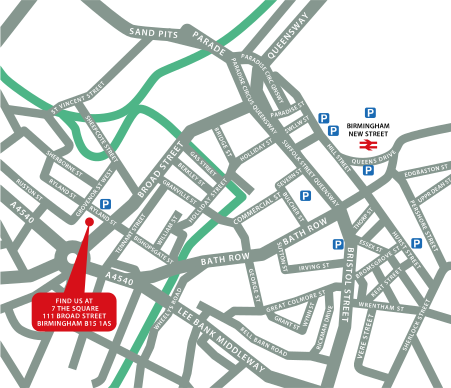
↑ Click the map to view a larger version ↑
-
CS6 Design Masterclass 5 Days - Upcoming Birmingham Course Dates
-
Client Reviews
"I felt the training that was delievered was very tailored to the group of attendees. I feel this is something that could be used every day going forward. "
Lynsey Brogan, Howden, Design Combo - 5 Day Masterclass
"Enjoyed all 5 days and learned a great deal!"
Dave Winkett, halfords, Design Combo - 5 Day Masterclass
"Thoroughly enjoyed each day and got plenty to put into practice."
Tracy Gibson, Wates Construction Limited, Design Combo - 5 Day Masterclass
"Very relaxed atmosphere & friendly atmosphere. Trainer very informative, knowledgable and willing to help with any questions or difficulties. Offices in a good central location. An enjoyable and informative course."
Kerry Duguid, Plant Integrity Mgmt., Illustrator - Two Day Introduction
"Had a very interesting 2 days within pleasant surroundings with a friendly, knowledgeable instructor. Perfect C4D training course."
Darren Mael, Billington Cartmell, Maxon Cinema 4D - 2 Day Intermediate
"Really productive day. Very pleased with the tutoring, thank you."
Jonathan Mawer, Vectorworks - 1 Day Introduction
"Enjoyed course, very informative, thank you."
Beverley Glynn, Auto Trader, PitStop Pro - 1 Day Introduction
"Very pleased with the course - fast paced, we covered a lot, but our instructor was very happy to stop and go over things if anyone hadn't understood. "
Josephine Kane, Wesminster Uni, WordPress - 2 Day Masterclass
"The 6 months support available is a fantastic addition to the course and I would definitely use XChange Training again in the future."
Charles Townsend, MRM Meteorite, Maxon Cinema 4D - 2 Day Intermediate
"The trainer was very clear and concise and even managed to help us look at our own new site under construction and answer any related queries regarding Dreamweaver."
Mike Johns, 3663

Over 15 years of providing certified Adobe Design Combo training courses UK wide

5/5 Stars
Phil was an excellent instructor and kept the team engaged and interested throughout two intense days of training. I would highly recommend him to others looking to complete similar training.
12/02/2026
5/5 Stars
Really enjoyed and was very useful for someone who hasn't used these products before
10/02/2026
5/5 Stars
he course was very well structured and motivating, and it imparted a great deal of knowledge. All questions were answered. We had a lot of fun and learnt and tried out a great deal.
10/02/2026
5/5 Stars
I found the course to be very helpful, it improved my skill and understanding of the basics of Adobe Illustrator. Alan was also able to focus on some skills that were bespoke to my particular industry which helped enormously.
05/02/2026
5/5 Stars
I found the Xchange Training course for advanced graphic design to be clear, consistent, and well structured. Everything was broken down into manageable chunks, which made it easy to follow. Any issues I asked Allen for help for were handled brilliantly. Allen took the time to look into specific printing equipment problems we were having especially with blacks not printing correctly and he was able to give the best possible solution. Which he went above and beyond for help. I was genuinely very grateful for the effort he put into helping us resolve this. All the photoshop and illustrator tutorial and steps to revise back are brilliant. Allen was also extremely friendly and easy to talk to, which made asking questions to feel comfortable and stress-free. Overall, a very valuable course and a great learning experience. Would highly recommend to anyone I know in the field.
16/12/2025
5/5 Stars
Very personalised training, tailored to meet the specific requirements of your role. Atmosphere was creative and inviting, and all questions were welcomed.
03/10/2024
5/5 Stars
Super course for a mix of beginner and advanced stuff :)
03/10/2024
5/5 Stars
I thought the course was very good and I've definitely came out of it with my knowledge in photoshop and indesign!
03/10/2024
5/5 Stars
Simon was a very good instructor with a brilliant teaching approach. He made the days very engaging and fun to follow along, all whilst learning new skills. I will reccommend this course to fellow colleagues.
01/10/2024
5/5 Stars
Very informative and fun course. Allen was a great teacher!
10/09/2024
Whats Included:
 Your choice of Windows or Mac
  Certified hands-on training
  Small class size (max 4-8)
  6 months post course support
  Digital Learning Materials
  Authorised Course Certificate
Frequently Asked Questions
What are the course times?
For all courses in the London Centre the normal session timings are 10am to 5pm with an hour break for lunch. In addition to the hour lunch break there are also two fifteen minute coffee breaks mid morning and mid afternoon.
Daily times are:
09.45 - Registration
10.00 - Course start
13.00 - Lunch
14.00 - Afternoon starts
17.00 - Course ends
Do you offer discounts
or promotions?
We offer a range of regular discounts available for self funding individuals, charities and education along with period special offers. See our promotions page for full details.
What is provided with this course?
During the course we provide all computers for your use with choice of Windows or Mac, lunch and refreshments along with pads & pens. After the course you will receive the authorised Certificate, quality reference manual and 6 months direct post course support.
Does this course give
a qualification?
Although this course does not provide an actual qualification each delegate is provided with an official Certificate for completion of the course level.
Can you invoice my company?
In short yes we can provide 30 day invoice terms to any UK Limited company with the provision of your official purchase order and/or completing the invoice request for your booking online.

Adobe Design Ready in just 5 days!
Learn Adobe Design skills with our value Adobe Design Masterclass Bundle →