
 0345 363 1130
 info@xchangetraining.co.uk


Affinity Introduction 2 Day - London
Level:
Introduction
Duration:
2
Days - 10am to 5pm
Price:
£395 + vat
Discover Affinity Studio in depth with our immersive two-day Introduction designed to take you from complete beginner to confident creator. You’ll explore the power of Affinity’s all-in-one photo editing, vector design and layout tools while building practical skills to produce polished graphics, striking visuals and professional documents.
As you progress, you’ll move beyond the essentials of the workspace to develop a fuller understanding of layout, colour, typography and visual consistency. Through hands-on projects, you’ll learn how to create multi-page documents, presentations and campaign-ready assets, and how to set up brand kits, collaborate effectively and optimise your exports.
Discover Affinity Studio in depth with our immersive two-day Introduction designed to take you from complete beginner to confident creator. You’ll explore the power of Affinity’s all-in-one photo editing, vector design and layout tools while building practical skills to produce polished graphics, striking visuals and professional documents.
As you progress, you’ll move beyond the essentials of the workspace to develop a fuller understanding of layout, colour, typography and visual consistency. Through hands-on projects, you’ll learn how to create multi-page documents, presentations and campaign-ready assets, and how to set up brand kits, collaborate effectively and optimise your exports.
-
Affinity Introduction 2 Day
Course Details
This 2-day Affinity Studio Introduction provides a comprehensive, hands-on exploration of Affinity’s powerful unified creative suite. Across two days you'll build confidence working with Affinity’s workspaces for Photo, Design and Publish, learning how to edit images, create vector artwork, and design professional layouts—all within a single streamlined workflow. With extended guided practice, you'll develop the skills to produce polished graphics, documents, and visual assets suitable for print and digital use.
Ideal for beginners, designers, marketers, photographers, and anyone looking to elevate their creative capabilities, this masterclass introduces essential tools while expanding your understanding of design principles such as colour, typography, composition, and visual hierarchy. You’ll also explore features like non-destructive editing, artboards, master pages, styles, and advanced export options, helping you create consistent, professional-quality work across projects.
Upon successful completion of this course, you will be able to:
- Navigate the Affinity Studio interface and move between workspaces with confidence
- Edit and enhance images using layers, adjustments and masking tools
- Create vector graphics, icons and illustrations with core drawing and shape tools
- Design multi-page documents and marketing materials using grids, guides and master pages
- Apply key design principles to improve clarity, layout and typography
- Build consistent branding using styles, colour palettes and reusable assets
- Export print-ready and digital files with Affinity’s flexible export options
By the end you’ll have the creative confidence and practical skills to produce high-quality work across photo editing, vector design and page layout—giving you a strong foundation to continue developing your projects independently in Affinity Studio.
Course Target Audience and delegate prerequisites:
This course is ideal for marketers, social media managers, small business owners, content creators, educators and anyone looking to create professional-quality designs quickly and efficiently without advanced design skills.
You will need basic PC or Mac skills, including a good understanding of your operating system. You should be able to launch applications, manage files and folders, and save or locate documents confidently.
-
Full Course Outline
The following is a general outline. The range of topics covered during your training is dependent upon student level, time available and preferences of your course booking.
Introducing Affinity Studio- What Affinity Studio is and how the unified workflow works
- How Affinity compares to Photoshop, Illustrator and InDesign
- A brief history of Affinity and its acquisition by Canva
- Affinity Studio installation and updates
- System requirements and recommended hardware
- Using Affinity on desktop devices
- Understanding the three core workspaces: Layout, Pixel and Vector
- Exploring toolbars, panels and workspace presets
- Managing documents, artboards and workspaces
- Working with Assets, Styles and Libraries
Layout Workspace
Layout & Document Setup- Creating documents, spreads and page presets
- Master pages and consistent layout structure
- Using grids, rulers and baseline grids
- Text frames, linked frames and text flow management
- Applying paragraph and character styles
- Creating columns, pull quotes and formatted sections
- Placing, fitting and updating linked images
- Embedding vs linking content
- Combining vector, pixel and layout assets in one document
- Working with long documents and multiple spreads
- Creating tables, charts and structured content
- Building brochures, reports and marketing materials
Pixel Workspace
Editing & Retouching Basics- Understanding raster editing and non-destructive workflows
- Using layers, adjustments and live filters
- Masking techniques: layer masks and selection refinement
- Healing, cloning and retouching tools
- Adjusting exposure, contrast, shadows and highlights
- Colour balance, HSL adjustments and vibrance
- Developing RAW images (where supported)
Compositing & Creative Techniques- Cut-outs, background removal and object isolation
- Blending modes and layer effects
- Creating composites from multiple images
- Using live filters for non-destructive editing
- Working with brushes and brush dynamics
- Organising layers, groups and masks for efficient editing
Vector Workspace
Vector Design Essentials- Understanding vector graphics vs raster imagery
- Using the Pen Tool, Pencil Tool and Shape Tools
- Boolean operations: add, subtract, intersect and divide
- Editing nodes, curves and paths
- Using colour palettes, swatches and global colours
- Applying gradients, strokes and effects
- Creating and using custom styles
- Working with text frames and artistic text
- Font pairing and typographic hierarchy
- Applying text styles and formatting presets
- Working with artboards and multiple design variations
- Using snapping, guides and grids
- Duplicating elements and creating reusable assets
Working Across Workspaces- Switching seamlessly between Layout, Pixel and Vector workspaces
- Combining tools from each workspace for hybrid projects
- Using Affinity’s unified approach for cross-discipline editing
- Understanding Affinity’s export tools and formats
- Exporting PNG, JPEG, SVG, PDF and print-ready files
- Choosing colour profiles, bleed, marks and print settings
- Keyboard shortcuts and workspace customisation
- Managing performance and resource settings
- Creating reusable templates and common design assets
-
Location Details
This course is provided at the XChange Training London training centre based at:
5 St John’s Lane
Clerkenwell
London
EC1M 4BHSt John’s Lane is located in the heart of Clerkenwell close to the junction of Farringdon and Clerkenwell Road. Farringdon tube & train station is just a few minutes away and the training centre can also be accessed from Chancery Lane and Barbican tubes in about 10 minutes. There is also easy direct access by bus from Waterloo (243) and West End (55) with nearby stops.
Daily course times run between 10am and 5pm with an hour break for lunch and both mid morning and mid-afternoon refreshment breaks. We recommend arrival at 9.45am for registration on the first day of the course.
View Full details of our London Training Venue and Course options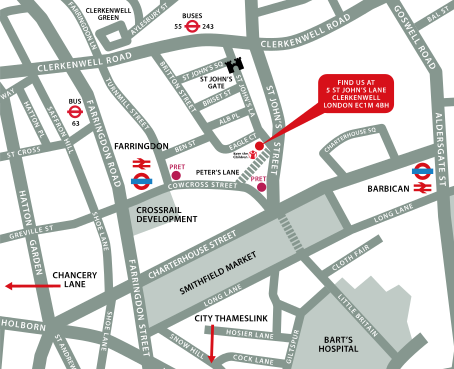
↑ Click the map to view a larger version ↑
View our London Centre Location on Google Maps
-
Affinity Introduction 2 Day - Upcoming London Course Dates
03 Dec - 04 Dec £395 + vat 17 Feb - 18 Feb £395 + vat 14 Apr - 15 Apr £395 + vat 23 Jun - 24 Jun £395 + vat -
Client Reviews
"Thank you very much, I thoroughly enjoyed the training week! "
Mairead Gillespie, Design Masterclass - 5 Day Introduction
"The course was on a one to one basis which was brilliant because it allowed me to follow my own path through it. The tutor was extremely helpful and had an excellent knowledge of the topic. Based on my experience today I would certainly consider using XChange Training again."
Nick Mills, Landmark Information, Captivate - Bespoke 1 Day
"Great trainer, great content and great practical exercises."
Amanda Cook, VMWare, Adobe Video Masterclass - 5 Day Introduction
"Very well delivered, informative, and the tutor was excellent. The small group size made learning and tutor support a pleasure."
Niall OLeary, LCA, Vectorworks - 2 Day Introduction
"The course was very helpful. As a complete novice I now feel I have enough knowledge to get started. I enjoyed the relaxed atmosphere and small group. I would definitely recommend this course. "
Kerri McKenna, The Bead Shop, Photoshop Introduction - 2 Days
"The trainer was very informative and helpful, and approach the course in a relaxed manner at a good pace. Many thanks"
Sarah Hatherall-Good, Woolmer Hill School, HTML & CSS Introduction - 2 Days
"I really enjoyed the course and the content/pace was easy to follow and gave us opportunities to play around and test what we had learnt. "
Ashleigh Toll, NSPCC, InDesign - 2 Day Bespoke
"Great trainer, very versatile, able to move with confidence from one subject/ question to another. "
Boris Thuery, Design Laboratory, Maxon Cinema 4D - 2 Day Introduction
"As always clear, concise and friendly. I have come away from today's course having learnt exactly what I needed to know. Thank you!"
Charlotte Green, AXA Investment Managers, HTML - 1 Day Introduction
"The trainer was great. I have had many of my questions about Adobe InDesign answered. Thank you for the opportunity to improve my knowledge and make it also an adventage in my professional work for my company."
Marta Jadowska, UBT, InDesign 1 Day Intermediate with ePub
 £395 + vat

Next Dates:
 03 Dec - 04 Dec £395 + vat
17 Feb - 18 Feb £395 + vat
14 Apr - 15 Apr £395 + vat
23 Jun - 24 Jun £395 + vat
Whats Included:
 Your choice of Windows or Mac
  Certified hands-on training
  Small class size (max 4-8)
  6 months post course support
  Authorised Course Certificate
Frequently Asked Questions
What are the course times?
For all courses in the London Centre the normal session timings are 10am to 5pm with an hour break for lunch. In addition to the hour lunch break there are also two fifteen minute coffee breaks mid morning and mid afternoon.
Daily times are:
09.45 - Registration
10.00 - Course start
13.00 - Lunch
14.00 - Afternoon starts
17.00 - Course ends
Do you offer discounts
or promotions?
We offer a range of regular discounts available for self funding individuals, charities and education along with period special offers. See our promotions page for full details.
What is provided with this course?
During the course we provide all computers for your use with choice of Windows or Mac, lunch and refreshments along with pads & pens. After the course you will receive the authorised Certificate, quality reference manual and 6 months direct post course support.
Does this course give
a qualification?
Although this course does not provide an actual qualification each delegate is provided with an official Certificate for completion of the course level.
Can you invoice my company?
In short yes we can provide 30 day invoice terms to any UK Limited company with the provision of your official purchase order and/or completing the invoice request for your booking online.

Adobe Design Ready in just 5 days!
Learn Adobe Design skills with our value Adobe Design Masterclass Bundle →